Master Data Import Templates
This section describes the properties of the Excel templates (Version: 9.0.0.1) for importing and updating to the Should Costing Solution.
With each release, you are provided with new Excel templates for the import into the FACTON Should Costing Solution.
Download the Excel templates:
Selection lists

|
Excel template: Selection List |
Global properties
|
|
Excel template: Overhead Rates |
|
|
Excel template: Wages |
|
|
Excel template: Location Factors |
|
|
Excel template: Exchange Rates |
Resources
If you are working with a SC / DC FACTON system, you must use the following Excel templates:
|
|
Excel template: SC/DC Material (incl. Value Rules) |
|
|
Excel template: SC/DC Selection List |
Structure of Excel templates
Metadata of Excel templates
The metadata of the Excel template is required for the correct allocation of the imported data and should not be edited. In the orange table, you maintain the metadata or data that applies equally to the entire data table.
The following three types of metadata and Excel templates are distinguished:
Metadata of Resources

- SheetVersion shows the version of the Excel template.
- #ObjectType shows the type of files to be imported.
- _Signature shows which master data are imported.
Metadata of Resources including Value Rules

- SheetVersion shows the version of the Excel template.
- #ObjectType shows the type of the files to be imported.
- #Host._Signature shows for which resources the value rules are imported. A correct allocation during the import is only possible in combination with #Host.Key and #Host.DataRecordOrigin.Key, to be found in the data table.
- #ValueRuleProperty shows the leading dimension depending property. Generally, dimensions are in the fixed columns on the left in the Excel template.
An example for illustration:

For further information on dimension depending properties, see: Global Properties
Metadata of Global Properties

- SheetVersion shows the version of the Excel template.
- #ObjectType shows the type of the files to be imported.
- #Host._Signature shows to which superordinate data area the value rules are to be imported.
- #ValueRuleProperty shows the leading dimension depending property. Generally, dimensions are in the fixed columns on the left in the Excel template.
Data Table
The data table contains all data for the Excel import.

Extract from the Excel template
Excel rows
With every Excel row, you determine additional master data for the import.
Excel columns
With every Excel column, an additional property from the master data is defined. The column names can vary with every Release. The version of the Excel template has to match the Release version of FACTON.
New columns can be added to the Excel templates from FACTON in the scope of customizing FACTON® or by an authorized partner.
Supported Data Types
Unit values:
Master data with unit values (e.g. Duration) always consist of two columns: one for the value and one for the unit.
 Example
The unit value duration of work steps consists of the properties:
| Duration.Number: | Value of the duration, e.g. 1 |
| Duration.Unit: | Unit of the duration, e.g. TMU |
Localized values
Localized values can be shown as dependent or independent from language.
In order to show language independent texts, you need to use »Invariant« as suffix (e.g. column »Label.Invariant« or »Description.Invariant«). In order to show language dependent texts, use the ISO Two letter Language Code as suffix for the property name (e.g. column »Label.de« and »Label.en«).
Example
In the Details view, you can fill in »Description«, »Description (de)« and »Description (en)«.
| Label.Invariant: | Text independent from language, e.g. Machine |
| Label.de: | Text dependent from language, e.g. (de) Spritzguss |
| Label.en: | Text dependent from language, e.g. (en) Injection Molding |
Boolean (logical values):
The Boolean type has two value forms. The truth value is either »TRUE« or »FALSE« .
Integer:
The number type is for integers.
Number:
The number type is for floating point figures with or without decimal places. In FACTON, the values are rounded to the twelfth decimal place.
Text
The text type is for character strings of variable length.
Date:
The date type is for date specification.
Single Selection list:
A single semantic key is entered into the single selection list.
An example for illustration:
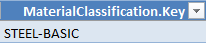
This entry of the Excel template in the FACTON client stands for the Material Classification "Basic Material » Metal » Steel » Basic Steel".
Multi-selection list:
Several semantic keys are entered into the multi-selection list.
The semicolon can be masked with the escape character »\«.
An example for illustration:

This entry of the Excel template in the FACTON client stands for the Manufacturing Method "Primary Shaping » Casting" and "Primary Shaping » Extrusion".
Identify semantic keys in FACTON
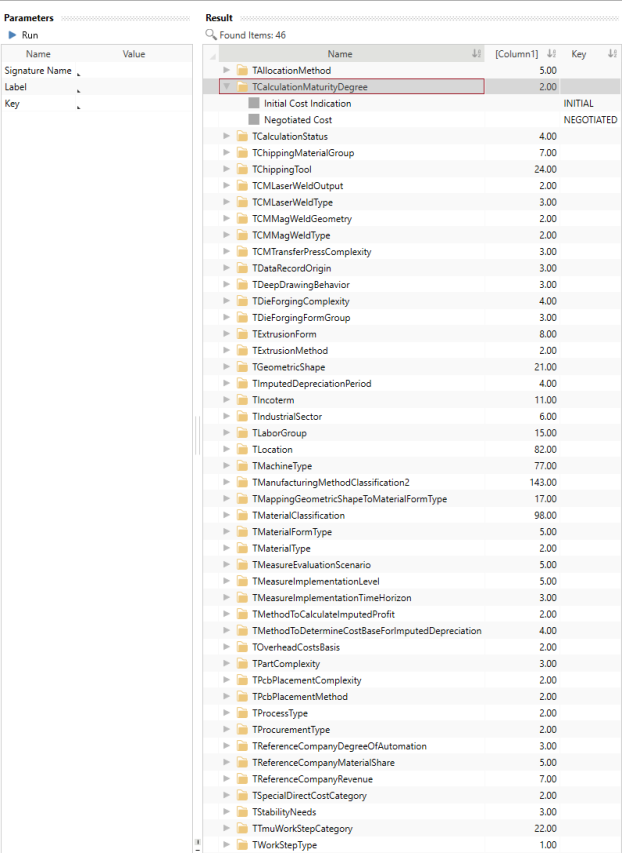
You can identify the semantic keys to use them for Excel imports by running queries in FACTON. The place where to use the semantic key in the Excel template is shown in the column XXX.Key.
Identify semantic keys
- You are logged in as Master Data Administrator.
- You are in the Master Data workspace.
- In the Explorer ► Queries, click on the
 in front of SC Solution Data.
 - Click on Semantic Keys for Selection Lists.
A new tab »Query : Semantic Keys for Selection Lists« opens, where you can determine specific query parameters.
- Select any query parameter.
- Click on the button
 Run to run the query.
All matching data are shown in the Result view.