Workspace Explorer
When you open FACTON the first time, the Workspace Explorer is hidden.
Show Workspace Explorer
-
In the ribbon, click on View > Show Window > Workspace Explorer
 .
. -
Alternative: Press F4.
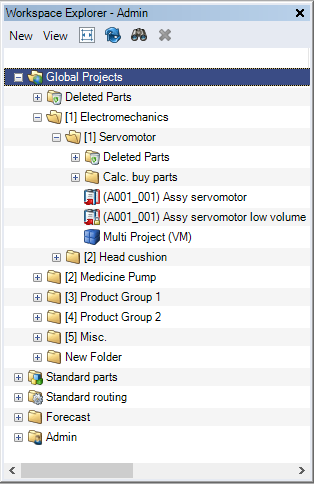
Further Information on the folders "Global Projects", "Standard Parts", "Standard Routing" and "Forecast" see Standard folders
Toolbar
The buttons in the toolbar display commands with direct effect on the contents of the Workspace Explorer.

"New" combobox

|
Project | This creates a new project. | CTRL + N |

|
Multi Project | This creates a new multi project. | CTRL + M |

|
Configuration project | This creates a new configuration project. | CTRL + K |

|
Folder | Creates a new folder. | CTRL + O |
"View" combobox

|
Default view | The Workspace Explorer can be displayed in the standard view. Information on any changes of the projects are shown here on the right-hand side of the Workspace Explorer (you need to expand the structure tree). | |

|
Detail view |
The Workspace Explorer can be displayed in the details view. The Workspace Explorer is divided into two parts. On the left-hand side, only the folders for managing the Workspace Explorer are shown. Depending on the selected folder, the right-hand side then shows the respective projects and their information on changes. |
|

|
Expand | Expands the selected folder. | CTRL + SHIFT + E |

|
Expand all | Expands all folders. | CTRL + E |

|
Collapse | Collapses the selected folder. | CTRL + SHIFT + Q |

|
Collapse All | Collapses all folders. | CTRL + Q |
Symbolic Buttons
-
Auto Size Width

Automatically adjusts the Workspace Explorer column widths to the folder and project names.
-
Refresh

This updates the Workspace Explorer.
-
Search

The "Search" dialog opens. The dialog is used to start a search in the Workspace Explorer.
-
Remove

The selected element (project, folder) is deleted after confirming the security prompt.
List Styles in Workspace Explorer
List Styles are used to show project properties in a specific sorting. Depending on the List Style, different columns are available on the right side of the Workspace Explorer (standard or detail view).
The properties shown as columns in the Workspace Explorer can be configured.
The following properties can be additionally configured:
| Possible Header | Internal Name |
|---|---|
| Contains Costing Types | HasCostingTypes
|
| Contains Enabled Take Rates | HasEnabledTakeRates
|
| Contains Sub-projects | HasSubProjects
|
| Contains Versions | HasVersions
|
| Is Sub-project | IsSubProject
|
| Offer | OfferNumber
|
| Project Currency | ProjectCurrency
|
| Project Location | ProjectLocationAtSOP
|
| Total Quantity | ProjectTotalQuantity
|
| Project Type | ProjectType
|
| Project Year | ProjectYears
|
| Version Number | VersionNumber
|
| Version Name | VersionName
|
| Version Status | VersionStatus
|
If you change the shown columns, e.g. renaming or the order, you have to either log out the user or restart the client.
The configuration of the List Styles is done by the FACTON Consulting. If you have any questions, please contact your FACTON consultant.
The List Styles available for the Workspace Explorer can be selected in the system settings.
Further Information see System Settings > List Styles - Workspace Explorer
Change information
You can see change information for each project both in the standard and details view on the right-hand side of the Workspace Explorer.
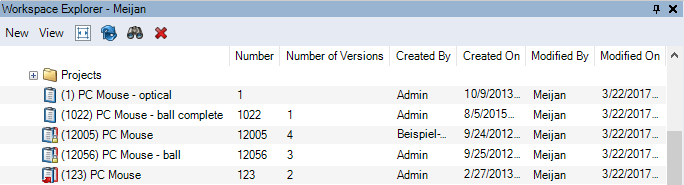
Figure: Workspace Explorer in the Standard view, Change information
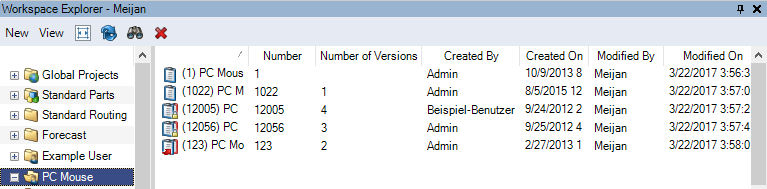
Figure: Workspace Explorer in the Details view, Change information
| Column | Description |
|---|---|
| Number | Displays the number of the project. |
| Number of Versions |
Shows the number of versions in a project (current status of work is not listed). The column is empty when the project only exists as current status of work, without any created versions. |
| Created By | Shows the user who created the project. |
| Created on | Shows the date when the project was created. |
| Changed by | Shows the user who last modified the project. |
| Changed on | Shows the date when the project was last modified. |
| Internal ID | Shows the internal ID of the project. |