Create new project
The currency can only be set when creating a project. Changes at a later stage are not possible.
- Select a folder in the Workspace Explorer.
- In the Workspace Explorer, click on New > Project
 .
. - Change the name of the project in the language shown.
-
Click on
 to enter the project name in another language.
For more information on multilingual functionality, see Multilingual Names.
- Select the currency for the project.
- Confirm your entries with OK. The project is created and opened.
The New Project dialog opens.
You can specify whether the project number should be created following specific guidelines (character length, upper or lowercase letters, numbers, etc.).
Create a New Project within a Project
You can create a new project under each assembly of a project, multi project or configuration project.
The default project name is the name of the parent project with the extension:
- "Sub-project" in a normal project
- "Sub-project" in a multi project
- "Variant" in a configuration project.
preset.
All values from production planning (years, quantities, surcharges) are transferred from the parent project, except for the project number and project offer.
- Normal project: The currency of the parent project is used.
- Multi project: The project currency is the multi-project currency.
- Configuration project: The project currency is that of the standard BoM. If there is no standard BoM, the currency of the parent project is used.
-
In the ribbon, click on Start > Insert Component ("Edit" group)
 > Project or click in the context menu on Part > New> Project .
The "New project" dialog opens.
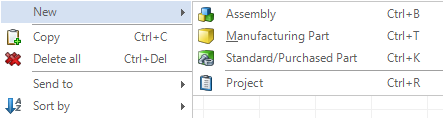
Figure: New Context Menu
-
Click OK. The "New Project“ dialog closes.
The project is saved in a previously created sub-folder of the project folder. The sub-folder has the same name as the parent project. If the folder already exists, it is used instead of creating a second one.
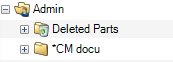
Figure: Folder Structure in the Workspace Explorer
-
The Select Project Costs Dialog opens.
Alternative:
-
Click Cancel. The generated project is deleted. The sub-folder is not deleted.
-
Click OK. The project opens, being added under the initially selected assembly.
-