Getting Started
You need the following cost model sample files from the FACTON CMD release:
- TableModel.zip
- PackagingModel.zip
- Create a new »FACTON SDE« folder under »C:\Users\<username>\Documents«.
- Create a new »Cost Models« folder under »FACTON SDE«.
- Unzip the TableModel.zip file in the »FACTON SDE\Cost Models« folder like this:

- Repeat step 3 for PackagingModel.zip.
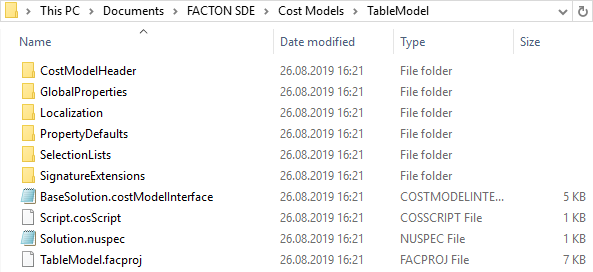
Folder Structure of »FACTON SDE«
| Folder | Description |
|---|---|
| Common Solutions |
Contains base solutions used by the models. |
| Cost Models |
Contains the created cost models. The FACTON CMD will automatically create one sub-folder for each new model. FACTON recommends to put this folder under version control. |
| Cost Models Backup |
Contains the cost model backups. The FACTON CMD will automatically create one sub-folder for each model in »My Local Configuration« after a run.
|
| Database |
Contains the test database used for testing models under development. This database is used when the test FACTON client is started from within the CMD. |
| Database Backup |
Contains backups of the database created when running the commandlet »Backup-FactonSDERuntimeDatabase«. These backups can be restored later to solve incompatibility issues. |
| Drop | Contains the created solution as NuGet-Packages (*.nupkg-files). These files are generated by the FACTON CMD each time the model is run and later merged into the final configuration. |
 A regular purging of old backups is recommended at your discretion.
Start the FACTON CMD
Start the FACTON CMD from the link on your desktop. It will show both cost models »TableModel« and »PackagingModel« on the left hand side in the »My Local Configuration« view. This view shows all cost models project as located in your local »FACTON SDE\Cost Model« folder.
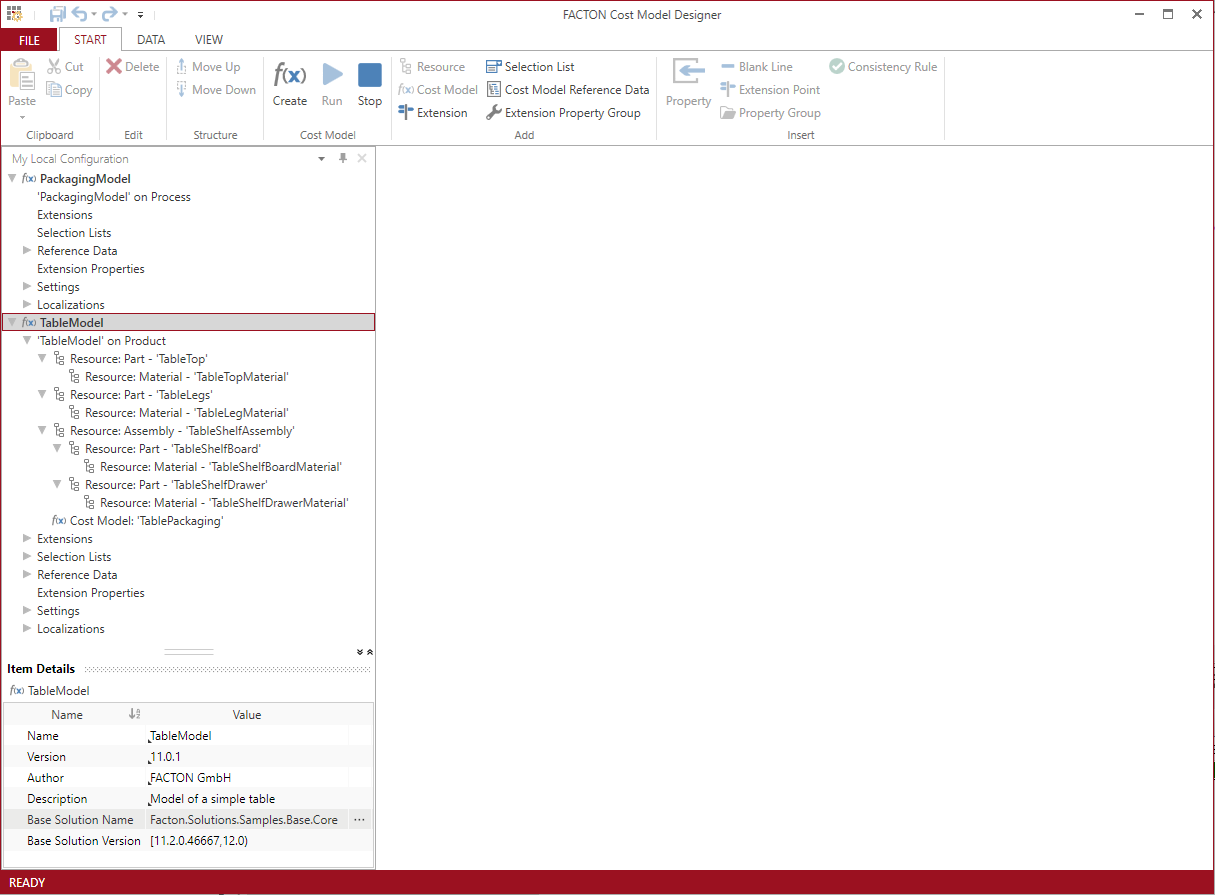
While the cost model is running, you are still able to work in the FACTON CMD to directly compare your definitions with the actual behavior in the FACTON CMD Test Client, and possibly correct them in the CMD.
Run cost model
- In the ribbon ► START, click on
 Run to save all changes and verify the cost model.
Alternative: F6
All changes are automatically saved when running. The  FACTON client opens.
You can still make changes in FACTON CMD.
Create calculation with cost model
- In the ribbon, click on
 Calculations to open the calculations workspace.
 - In the ribbon ► MANAGE, click on »Project«.
A tab with the project calculation opens.
- In the ribbon ► EDIT, click on »Product«.
A product is inserted under the project. The Details view of the product is shown.
- In the Details view of the product, select the »TableModel« as »Cost Model« from the combobox.
The »TableModel« is available for the product.
Define more table details
- In the Structure view, select »Product«.
The corresponding Details view opens.
- Define more table details
| Name | Value |
|---|---|
| Main Material Classification | Metal » Ferrous Metals |
| Main Material | Stainless Steel |
| With shelf? |

|
| Kind of Shelf | Board |
| Shelf Material | Mahogany |
| With packaging? |
|
FACTON enables you to complete the following structure based on your input.
Complete BoM structure
- In the Structure view, right-click on the Project or Product ► Complete Structure.
Alternative: F11 in the Structure view or Details view.
The FACTON CMD Test Client generates the designed structure below.

Stop FACTON CMD Test Client
Save and publish all changes in the FACTON CMD Test Client BEFORE restoring a version.
- In the FACTON CMD ► ribbon START, click on
 Stop to stop the processes.
The FACTON CMD Test Client closes.
After closing the FACTON CMD Test Client and stopping all processes, please exit the FACTON CMD.