Save As Project (Copy)
You can copy a project in FACTON using the "Save as" function. The function is available for all project types. You decide whether the embedded sub-projects and all versions should be inserted in the new project as a copy or a reference.
When referencing the embedded projects appear in the project structure of the new project and can be opened from there. Changes to the original sub-projects are forwarded with the current revision status to the new multi project/assembly sub-projects.
During Copying, the version of the embedded project is inserted with the current revision status. Depending on the settings, the sub-projects are either saved in the same folder of the project, or they are copied with the folder structure.
To "Copy versions" and "Open references" from the new project, you need at least the "read access" right.
Save project as
-
Open a project.
-
In the ribbon, click on File > Save As.
Alternative: In the project, click directly on F12.
The "Save As" Dialog opens.
-
Select the folder in the structure view under which the copy should be saved.
-
Enter a new name for the project in the "Name" input field.
Alternative: Click on
 in the "Name" input field to enter the project name in another language.
 -
Click on the plus sign in front of "Advanced Settings" and select an option for sub-projects and an option for existing versions.
-
Activate the "Copy costing types" checkbox if you want to copy the costing types for all projects (including sub-projects and external projects).
- Confirm your entries with OK.
The project is saved and opens in a new tab.
When you copy folders that contain projects, the folder structure is accepted but not the projects!
To use the "Save as" feature for a configuration project, you must be in the Multi project view.
All allocations and assignments are accepted.
When copying a configuration project, the pasted version of the sub-project is copied and pasted into the new project (CSW) in all sub-projects. The version history is not copied.
Copy Project to New Folder
The "Save as" dialog allows you to create a new folder to insert the copied project into.
- Open a project.
-
In the ribbon, click on File > Save As.
Alternative: In the project, click directly on F12.
The "Save As" Dialog opens.
-
Select the folder in the structure tree under which you would like to save the project in a new folder.
-
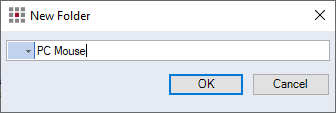
Right-click on the folder > New folder.
Alternative: Click Ctrl + N.
-
Choose your preferred, predefined language from the "Language" combobox.
-
Enter a name for the folder in the input field.
HintYou can enter the name of a folder in different languages when you create the folder.
- Choose a preferred second language from the "Language" combobox.
- In the "Name" field, enter the name of the folder for the second language.
- Confirm your entries with OK.
The folder is created.
-
Enter a new name for the project in the "Name" input field.
- Confirm your entries with OK.
The project is saved and opens in a new tab.