Calculations Interface
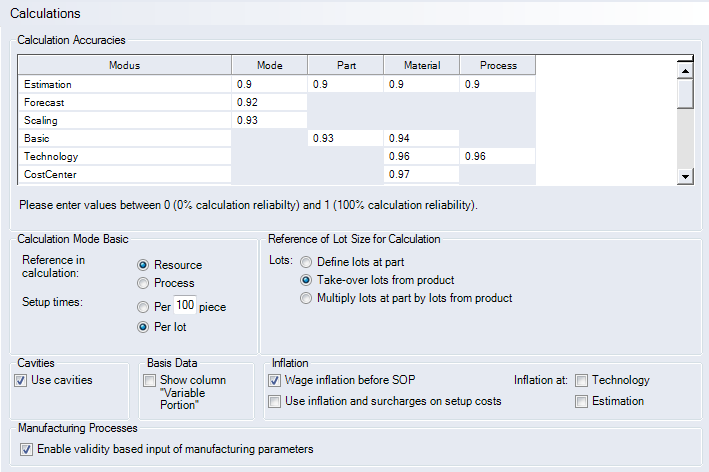
Figure: Calculations Interface
"Calculation Accuracies" group:
These settings enable you to determine the level of accuracy you want to have applied in a calculation mode. The setting for the level of accuracy determines at what point FACTON will alert you when switching to a less accurate calculation mode. In addition, the levels of accuracy are also used to present the results in the "Mode Analysis" report.
- "Mode" column: Displays the name of the calculation mode for which a level of accuracy is entered.
- "Part" column: Enter the accuracy of a calculation mode if it is applied to a part.
- "Material" column: Enter the accuracy of a calculation mode if it is applied to a material.
- "Manufacturing Process" column: Enter the accuracy of a calculation mode if it is applied to a manufacturing process.
- "Additional Costs" column: Enter the accuracy of a calculation mode if it is applied to an additional costs.
"Calculation Mode Basic" group:
-
"Reference in calculation":
-
"Resource" option:
Machine and labor costs are separately assessed in Basic mode (default setting). Machine cost and workforce cost rates as well as machine and employee time are used to calculate manufacturing costs.
-
"Process" option:
There is no separate assessment of machine and labor costs in Basic mode. The manufacturing cost rate and production time are used to calculate manufacturing costs. Setup costs are assessed in a separate field.
-
-
"Setup times":
This setting determines the default reference unit used for the setup time and applies only when assessing work steps in Basic calculation mode.
-
"Per n piece" option:
When selected, the lot size of the process is preset with n pieces. n is the amount entered in the entry field.
-
"Per lot" option:
When selected, the time entered is per lot.
-
"Reference of Lot Size for Calculation" group:
Using the settings for lot sizes, you can determine the default lot sizes FACTON uses in calculations.
-
"Define lots at part" option:
When selected, enter the number of lots at the part. Only this number of lots will be used. The default value is 1. The number of project lots from the Production Planning is not taken into account.
-
"Take-over lots from product" option:
When selected, the lots are taken from the Production Planning. This enables you to define different lot sizes for single calculation years. In this case, you cannot define the number of lots at the part.
-
"Multiply lots at part by lots from product" option:
When selected, the lots are taken from the project. You can also define the number of lots for each part. The final number of lots at a part is calculated by multiplying the number of project lots by the number of part lots.
"Cavities" group:
-
"Use cavities" checkbox:
This is a default value for the manual setting in the calculation modes. Activate the checkbox to use cavities in the calculation.
"Basic Data" group:
-
"Show column "Variable Portion"" checkbox:
This setting allows you to define the variable portion for each surcharge (material overhead, production overhead rates, etc.). The variable portion of the surcharge per year is set in the basic data. You can also adjust the share of variable costs in production planning for each project.
"Inflation" group:
-
"Wage inflation before SOP" checkbox:
Activate the checkbox to add wage inflation before the start of production to the labor costs from Data Administration. It is crucial to determine the start date of wage inflation in the basic data. Precondition: The inflation rates must be saved in the basic data (with location) in Data Administration.
NoteIf you activate the checkbox, wage inflation only applies to work processes that have been evaluated in Advanced mode. Labor costs that were entered in Estimation or Basic mode are not inflated before SOP.
-
"Use inflation and surcharges on setup costs" checkbox:
Activate the checkbox to increase setup costs with a separate inflation rate (setup inflation).
Deactivate this checkbox to use wage inflation to inflate setup costs.
NoteSetup inflation is an inflation rate that acts upon labor and machine costs during setup. A surcharge rate type "Inflation rate" and surcharge on "Setup inflation" must exist in the basic data in order to use setup inflation. Setup inflation acts on the Estimation, Basic, Advanced and Technology calculation mode (on processes). Setup inflation always applies in Estimation mode.
NoteSetup inflation is only calculated for active projects. Existing versions are not changed when the option is turned on or off.
-
Inflation at "Technology" checkbox:
Activate the checkbox to calculate the inflation in the Technology calculation mode.
-
Inflation at "Estimation" checkbox:
Activate the checkbox to calculate the inflation in the Estimation calculation mode.
"Manufacturing Processes" group:
-
"Enable validity based input of manufacturing parameters" checkbox:
Activate the checkbox to use validities for process parameters. This function is deactivated by default.